"How to add codes and
markings"

This part of the tutorial
gives an introduction about how you can add your own codes,
markings, kill-marks, etc. to an existing skin, i. e. to create
another historical pilot's plane, for use in an online-squad, a
campaign or just to get a "neutral" set of letters
without mirror-effect.
The plan
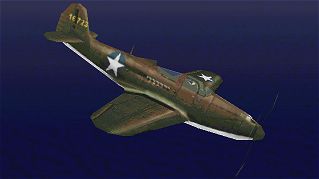
I'll use as the base aircraft
the Bell P-39D
Airacobra of the 35th FG USAAF, New Guinea 1942:
 |
Download (450kb)
You have started a successful New Guinea-campaign with the
Airacobra but got bored about the fact that you do not have a
personalized aircraft, although you are already squadron-leader
and a famous ace  .
Now we are going to change that! We will add
.
Now we are going to change that! We will add
a) personal
codes, in my example C * M,
b) nose artwork and
c) some bright recognition lines on the wings.
The 'mirror effect' for the aircraft markings is not an
important factor for this tutorial, but if you wish you can
use codes that are not affected, such as Y, I, O, M, X,,
U, A, H or V . The choice is up to you and your
needs. The aircraft that we are going to modify
is in no way historically accurate, but with these techniques it's possible to alter every possible skin to
another coded variant.
a) Codes
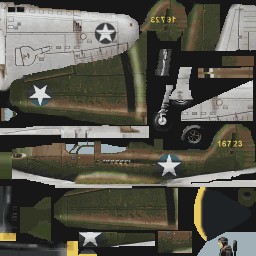
1.: Open the file Pp51btex.pcx that is included in the
ZIP-file of the skin. What you will see is this:
 |
Save the palette of the aircraft by "Color" - "Save Palette...". Turn the file to 24bit-color depth with the menu "Color" - "Increase Color Depth". Now we are able to make the codes.
2.:
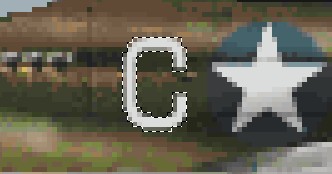
Suck up with the Dropper the brightest color in the white star of
the fuselage and keep this as primary color. Now, use the Text-tool and write a C in the menu. Choose a font
that suits your needs. Maybe you are in the lucky
position of already having good fonts for marking aircraft, but mostly you have to search for these in the
web
. You can use one of the standard-fonts as they can do
the job well in most cases. Please make sure that you have
"Antialiased" enabled, you find this with PSP 5 in
the same window where you define the font-style.
Do not make the C too big, sizes between 10-20 ## are about
right. With the font "Eurostyle", I made it size
14, bold. Make the C and move it into the position where you
would like to have it. Keep the C selected all the time, it's
easier to paint the details this way in the next steps.
 |
3.:
You notice that some
fuselage-lines cross the code, and it looks like a sticker
attached to the skin if they are not included on the C.
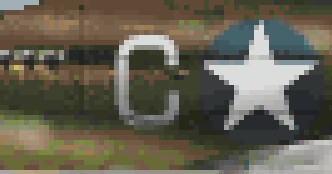
Take the Brush, size 1, opacity 1-3, density 100, steps 1 and
draw the lines carefully into the bright C.
For the C, it's only subtle, some planes have a lot of lines that
are crossed, there it's more important to make them. But as
always, do not exaggerate with the effect!
4.: Take the Airbrush and the color black, set the Airbrush-options to size of about 24, opacity 5, density 100, steps about 25 and start to carefully darken the code from the underside. This adds a lot of depth-effect to it.
 |
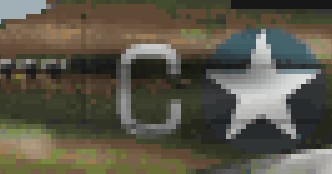
5.: The engine exhausts leave a mark along
the fuselage which covers the code. This is due to
the laws of physics and aerodynamics... . To imitate this effect, again take the Airbrush and the color black, options to size of
about 9, opacity 5, density 100, steps about 25 and make slight
stripes along the fuselage following the direction of flight. It's no problem when it touches the star, it gives the
impression that you flew a lot of missions with this aircraft...
. To imitate this effect, again take the Airbrush and the color black, options to size of
about 9, opacity 5, density 100, steps about 25 and make slight
stripes along the fuselage following the direction of flight. It's no problem when it touches the star, it gives the
impression that you flew a lot of missions with this aircraft...
 |
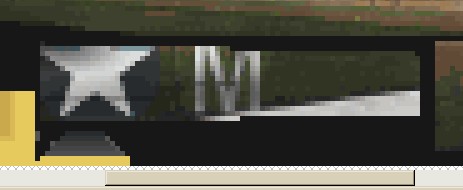
6.: Now add in a similar way the M behind the star-marking. Again, use the brightest color from the star (which we made a bit dirty in the last step), and draw the M, with the same font and the same size as the C. Sometimes it may be necessary to change the size of the codes because they are too much bold, or need more fragile lines, etc. This can be achieved with the Deformation-tool. You will find out quickly how it works (only in 24bit or higher), and it's a great thing to use for special codes and markings.
7.: You may notice that there is a panel for the right fuselage-side. It's now time for a little "homework" to figure out a way of fitting the new painted left fuselage-side to this panel - a little hint: In the 109-tutorial we introduced element-maps...they are not only useful with 109s, believe me...
 |
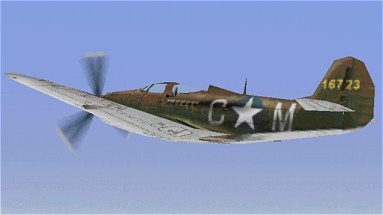
So, after we've done that, we convert the plane back to the EAW-palette with "Colors" - "Open Palette..." and convert it with PicPac. Now it should look like this (more or less!):
 |
Wasn't that difficult, right? So let's move on to a decent nose-art.